-
Getting started with Aico
- Logging into Aico for the First Time
- Creating your first journal
- Creating your first request
- Creating your first payment
- Creating your first Intercompany Invoice
- Working with Closing Tasks
-
Working with Journals
- An overview of Aico journals
- How to create a manual journal
- Create a journal by copying existing journals
- Import new journals from Excel
- How to import multiple journals from one Excel spreadsheet
- What are recurring journal entries?
- How to create Recurring Duplicate Journal entries
- How to create Recurring Allocation journal entries
- Create recurring journals with automatic reversals
- Reversing documents
- Import data to existing journals
- Working with Reconciliations
- Universal Settings
- Dashboards
- Closing Tasks
-
System Manager
-
Users and User Groups
- Overview of Users and User Groups
- Add user accounts
- Edit user account data
- Manage user groups
- Manage user roles
- Copying roles at the company level
- Copy user roles from individual users
- Create a user report
- Manage administrative user rights
- Super user mode
- Additional super user global admin rights
- User and User group export and import
- Value sets
- Currency Amount Groups
- Mail notifications
- Tax codes
- Maintenance
- Periods
- Companies
- Archiving
- Managing PDFs
-
Users and User Groups
-
Automation Manager
- Introducing Automation Manager
- Core Set Up
-
Task Templates
- Introducing task templates
- Creating task template details
- The Aico Document
- Aico document headers
- Preparer and Approver workflow settings
- Overriding parameters at a company level
- Master data export and import
- Set a custom schedule
- Dependent tasks in Aico
- How to use Smart tags in Aico
- How to add an attachment to a task template
- How to create a preparer start time
- Cross company dependent tasks
- Related link types
- Task Generation
- Companies
- Administrative tasks
- Staging API
-
Aico Announcements
-
Announcements
- Public holiday dates 2025: Aico Support Unavailable.
- NEW: Journal Entry Automation Deep Dive
- Aico Skills Lab: Journal Entry Configurations Tricks & Tips (Rescheduled)
- NEW: Aico Skills Lab Tips & tricks for Aico Journal Entries configuration
- NEW: Account Reconciliation Skills Lab Exclusively for Super Users!
- Public holiday dates 2024: Aico Support Unavailable.
- NEW: Software Release Presentation: Enhancing User Experience 24.1
- Public holiday dates 2023: Aico Support Unavailable.
- Release notes
- Maintenance Schedule
- Support Alerts
-
Announcements
- Aico Reviews
Rich text chart
Modified on Mon, 5 Jan at 11:44 PM
This chart can be used to provide news-based information to Users as well as links to dashboards and documentation stored outside of Aico. Below are 2 different examples of a rich text chart. 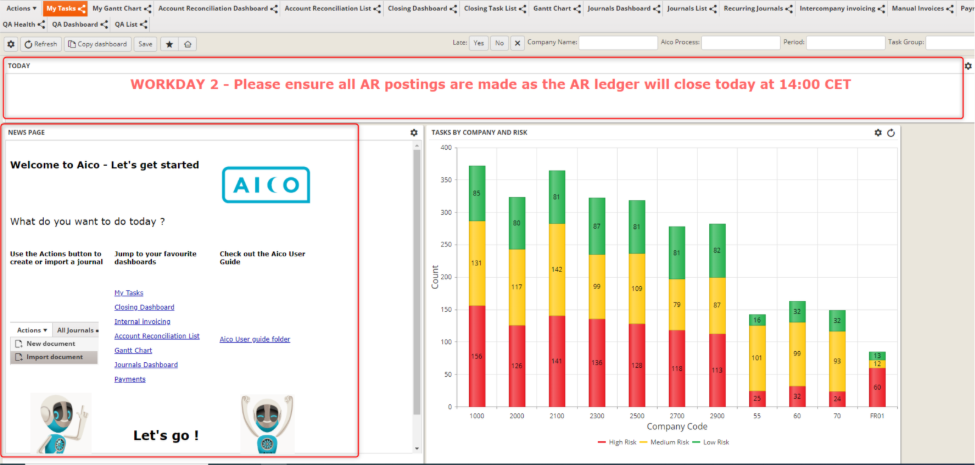
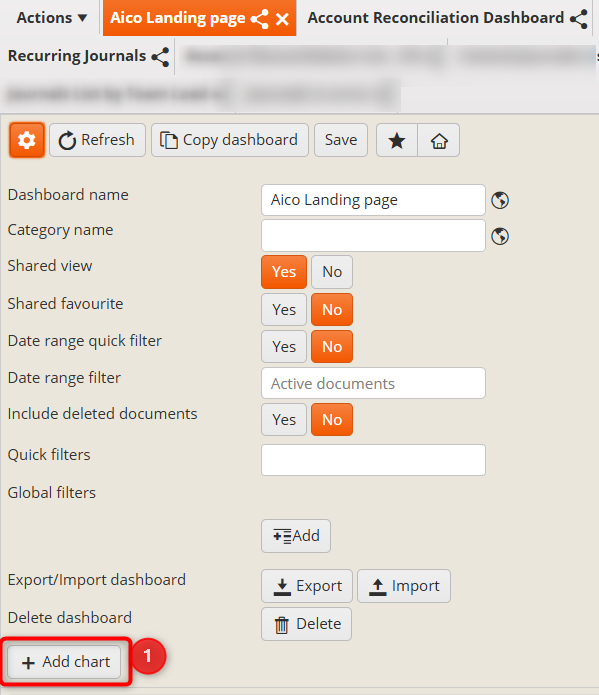
Open the dashboard to which you want to add this chart and click on the cog wheel in the top left corner.
Clicking on the cog wheel will take you to the set-up view of your dashboard.
- Click on Add chart at the bottom.
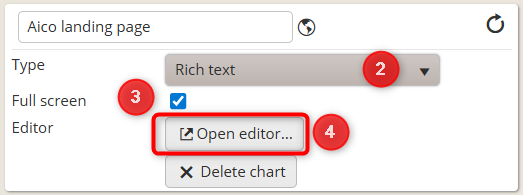
- Select the Rich text chart type
- You can make the chart full screen or drag it to the preferred size if it is part of a larger dashboard where this is only one of the charts.
- Press Open editor
- You are now free to add text, images, dashboard links and links to external sites.
Tip: it is suggested that you start by inserting a table (without borders) to help as a guide to the layout.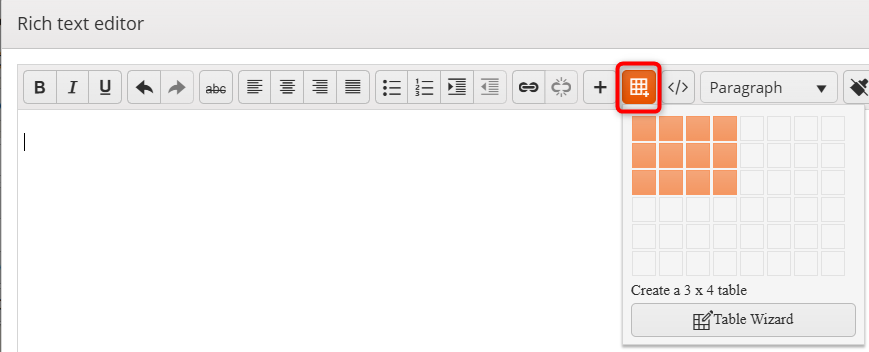
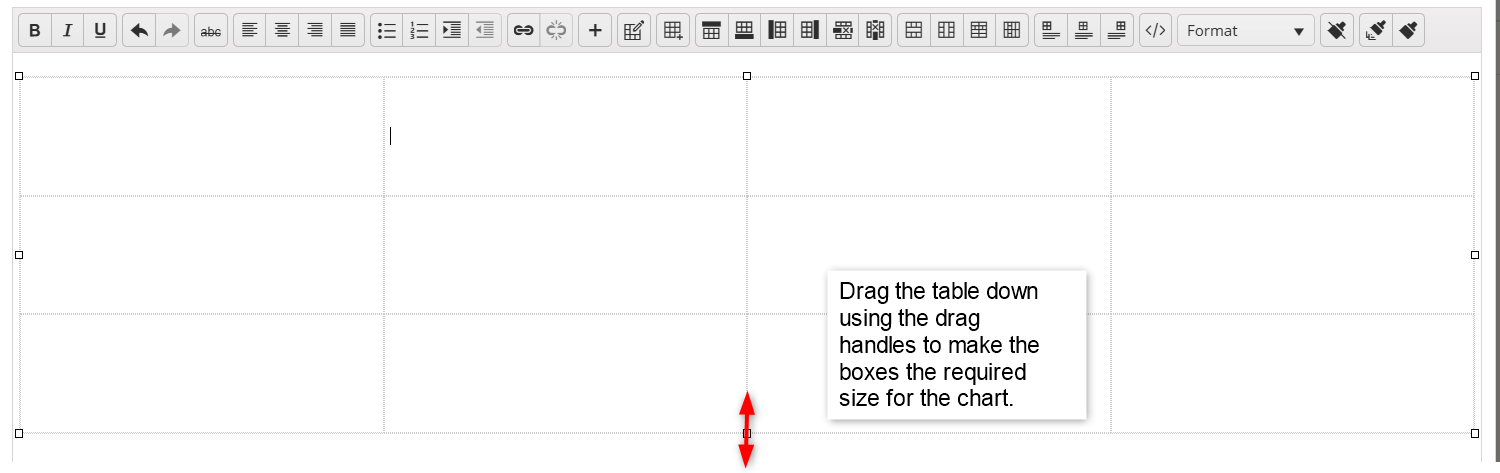
- Adding text
You can add text directly into the chart with simple editing capabilities such as Bold, italic etc. You cannot change the font but you can vary the format of the text.
- Adding images
You can simply copy and paste images into the chart. - Adding dashboard links
Use the + icon to add a dashboard link. The text will set what is displayed and the when the user clicks on the specified text in the chart, they will be taken directly to the specific dashboard.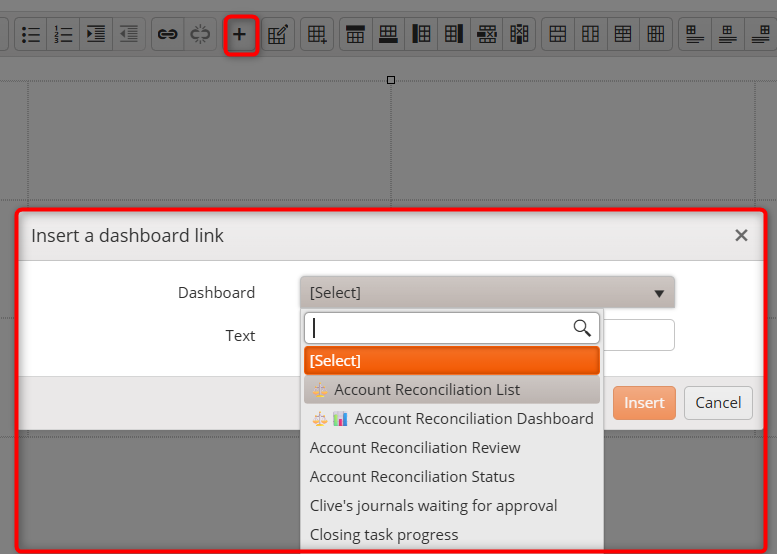
- Adding links to external URLs.
Use the link icon to add links to external content.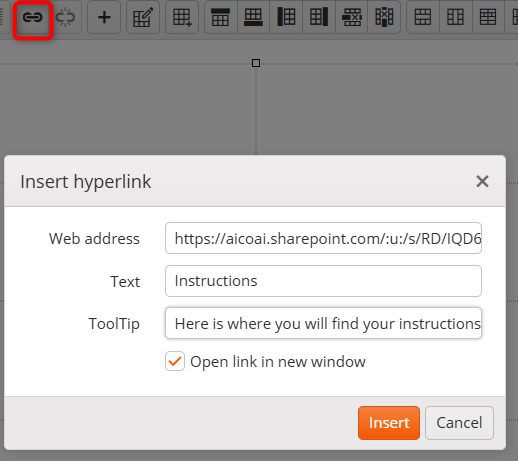
- One significant use case that some customers might consider is to have a landing page which is simply a rich text chart and does not need to load any Aico document data thereby loading faster. This would mean that a User simply logging in to Aico to upload a journal would land on this page and could perform their task in the normal way but would not be asking for documents to be loaded when they are not interested in other data
Was this article helpful?
That’s Great!
Thank you for your feedback
Sorry! We couldn't be helpful
Thank you for your feedback
Feedback sent
We appreciate your effort and will try to fix the article