-
Getting started with Aico
- Logging into Aico for the First Time
- Creating your first journal
- Creating your first request
- Creating your first payment
- Creating your first Intercompany Invoice
- Working with Closing Tasks
-
Working with Journals
- An overview of Aico journals
- How to create a manual journal
- Create a journal by copying existing journals
- Import new journals from Excel
- How to import multiple journals from one Excel spreadsheet
- What are recurring journal entries?
- How to create Recurring Duplicate Journal entries
- How to create Recurring Allocation journal entries
- Create recurring journals with automatic reversals
- Reversing documents
- Import data to existing journals
- Working with Reconciliations
- Universal Settings
- Dashboards
- Closing Tasks
-
System Manager
-
Users and User Groups
- Overview of Users and User Groups
- Add user accounts
- Edit user account data
- Manage user groups
- Manage user roles
- Copying roles at the company level
- Copy user roles from individual users
- Create a user report
- Manage administrative user rights
- Super user mode
- Additional super user global admin rights
- User and User group export and import
- Value sets
- Currency Amount Groups
- Mail notifications
- Tax codes
- Maintenance
- Periods
- Companies
- Archiving
- Managing PDFs
-
Users and User Groups
-
Automation Manager
- Introducing Automation Manager
- Core Set Up
-
Task Templates
- Introducing task templates
- Creating task template details
- The Aico Document
- Aico document headers
- Preparer and Approver workflow settings
- Overriding parameters at a company level
- Master data export and import
- Set a custom schedule
- Dependent tasks in Aico
- How to use Smart tags in Aico
- How to add an attachment to a task template
- How to create a preparer start time
- Cross company dependent tasks
- Related link types
- Task Generation
- Companies
- Administrative tasks
- Staging API
-
Aico Announcements
-
Announcements
- Public holiday dates 2025: Aico Support Unavailable.
- NEW: Journal Entry Automation Deep Dive
- Aico Skills Lab: Journal Entry Configurations Tricks & Tips (Rescheduled)
- NEW: Aico Skills Lab Tips & tricks for Aico Journal Entries configuration
- NEW: Account Reconciliation Skills Lab Exclusively for Super Users!
- Public holiday dates 2024: Aico Support Unavailable.
- NEW: Software Release Presentation: Enhancing User Experience 24.1
- Public holiday dates 2023: Aico Support Unavailable.
- Release notes
- Maintenance Schedule
- Support Alerts
-
Announcements
- Aico Reviews
Daily tasks
Modified on Tue, 2 Dec, 2025 at 1:07 PM
The daily task scheduler was introduced in 24.2 and requires a separate Aico license. It is a special task type which allows you to set up tasks on a daily schedule within the period.
You can specify that the task should be generated on specific days of each week (e.g. Monday to Friday or only Tuesday and Thursday) and also whether such tasks should be generated on non-working days or not based on the holiday calendar.
There are a few other considerations which will also be discussed in the article regarding whether to use dedicated templates for daily tasks are not.
This article will show you how to set up such a task.
- Since the daily tasks are most likely to run from the beginning of the period, they will need to be generated at a much earlier time than tradition Aico tasks like Account reconciliations or closing. It is therefore recommended that you set these up in a separate Automation manager process which will make them easier to generate separately from other tasks.
You can learn to set up an Automation manager Processes here.
- Create a schedule group for your daily tasks.
- It is very likely that you will want a schedule group that starts on calendar day 1 and ends on the last calendar day of the period. This is done by setting the schedule from Day 1 to Day -1 of the current period. This may feel a bit counterintuitive but day -1 means the last day of the associated month.
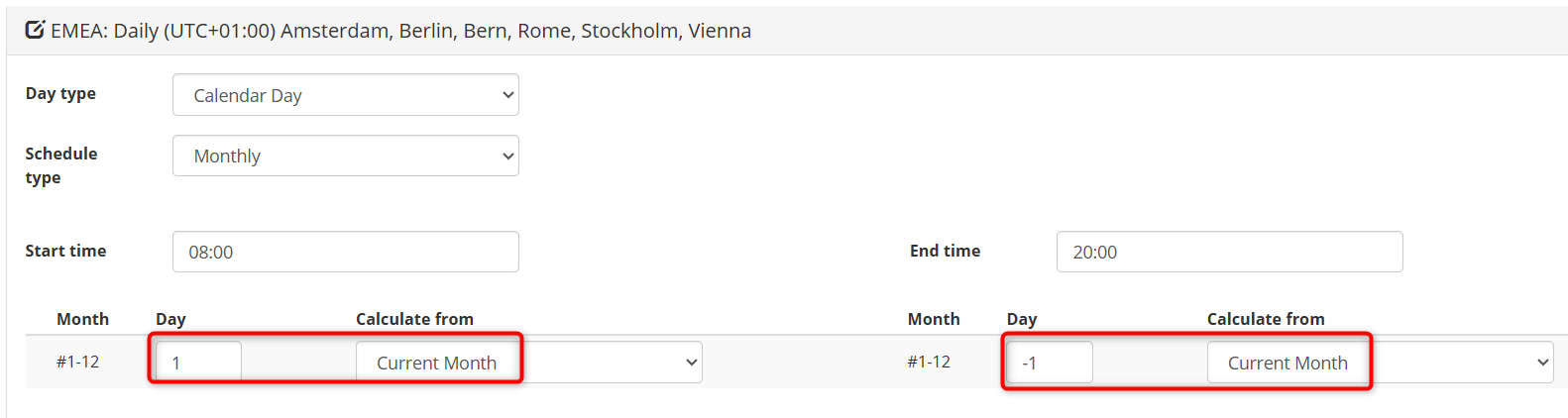
- You can create a schedule group that for example, runs from calendar day 5 to 10 in which case you will only generate tasks on your chosen days between those days. i.e. if I have set Tuesday and there IS a Tuesday between days 5-10 I would get a task but if there is no Tuesday then I would not.
- NOTE - the start and end time in the schedule group is overridden by the start time on the daily schedule.
- It is very likely that you will want a schedule group that starts on calendar day 1 and ends on the last calendar day of the period. This is done by setting the schedule from Day 1 to Day -1 of the current period. This may feel a bit counterintuitive but day -1 means the last day of the associated month.
- Next create your Automation manager task template.
- Start by selecting the Daily task scheduler task type (1) and whichever sub task type (2) that you want to run. For example, Manual workflow or SAP program etc.
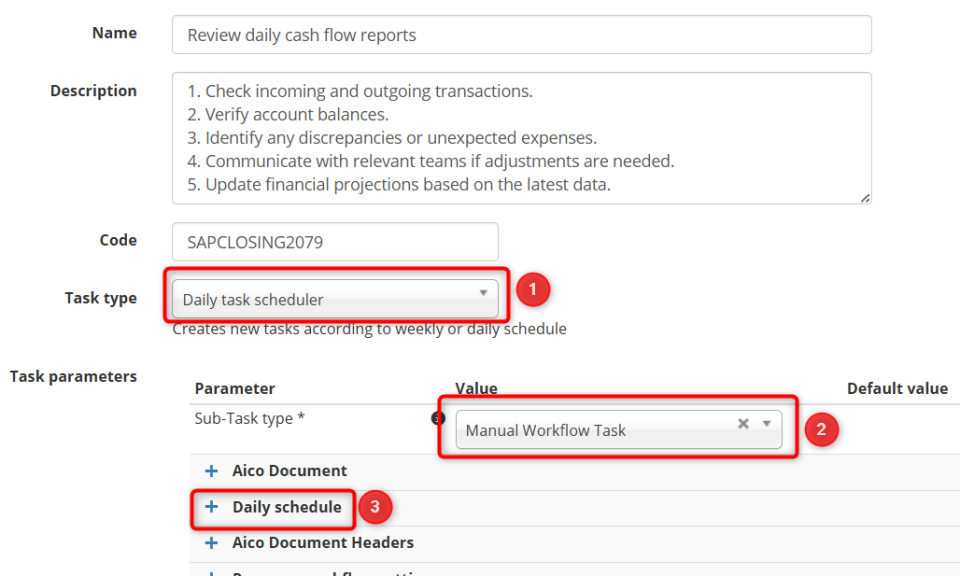
- Selecting the Daily task scheduler task type will add a new set of parameters to the task (3) which is where you will define the frequency of the task.
- Depending on the Sub-Task that you select, you will see additional task parameters appear.
- SAP Transaction or program will add the Program parameters.
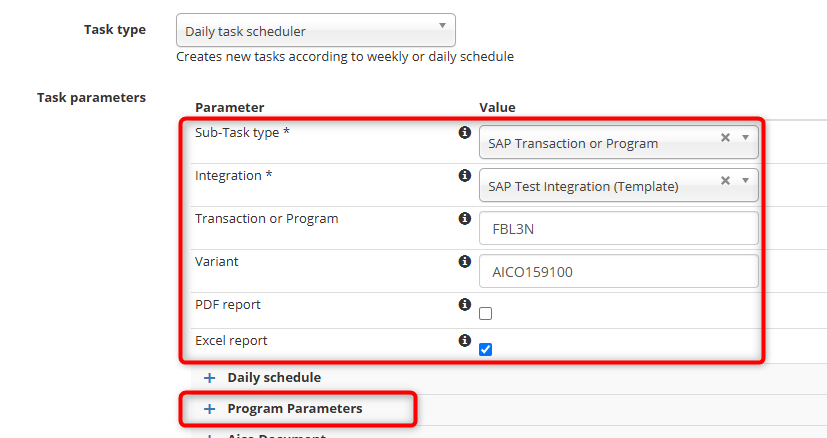
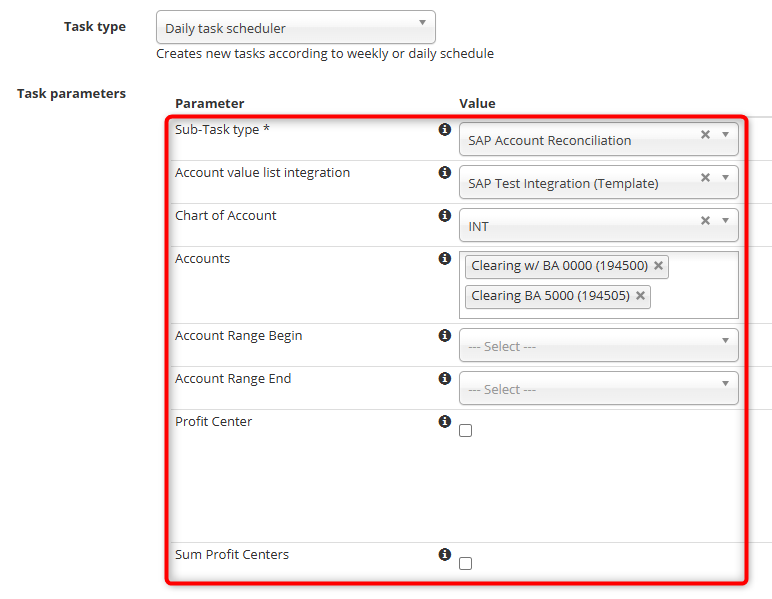
Note that the Program Parameters will not appear until you have selected your Transaction or program name. - SAP Account reconciliation will add the Account reconciliation task parameters.
- Start by selecting the Daily task scheduler task type (1) and whichever sub task type (2) that you want to run. For example, Manual workflow or SAP program etc.
- Open the Daily task scheduler parameters.
- The start time is the time of day that the task will be sent to the Preparer on each of the selected days.
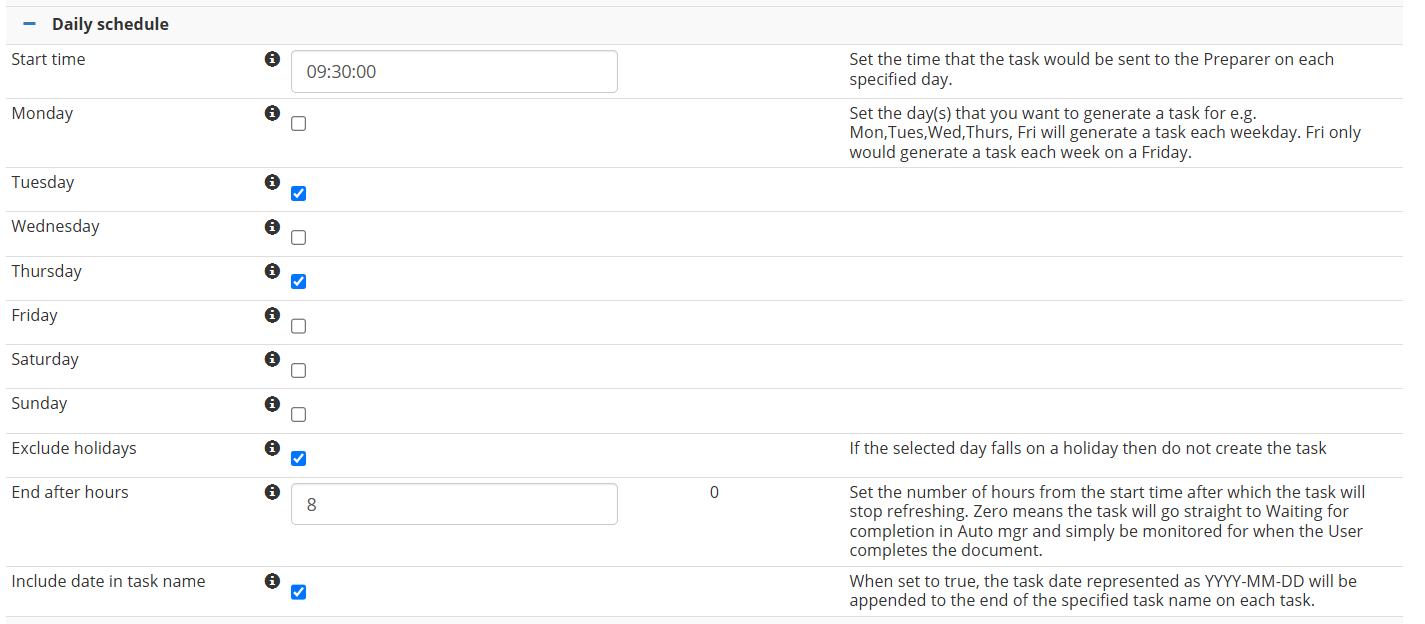
- Next you specify which days of the week the task should be generated. For example, if you want the task to be generated once per week on a Monday then simply select Monday. When the tasks are generated for the period, Aico will generate one for each Monday in the period i.e. if there are 4 Mondays in the period, you will get 4 tasks and if there are 5 Monday then you will get 5 tasks.
- Exclude holidays will check the days you have selected against the holiday calendar linked to the company, if that day is a holiday then no task will be generated. For example if the you have selected Monday and the first Monday of the period is marked as a holiday then you will not get a task for that first Monday.
- End after hours is only relevant if you have set a refresh interval which is not very likely on a daily task. It could apply if the sub task is an SAP program or Account reconciliation but does not make sense if the task is manual as there is nothing to refresh. The most expected setting is Zero which means the task will go straight to Waiting for completion in Auto manager and simply be monitored for when the User completes the document. You can learn more about Automation manager task statuses including waiting for completion here.
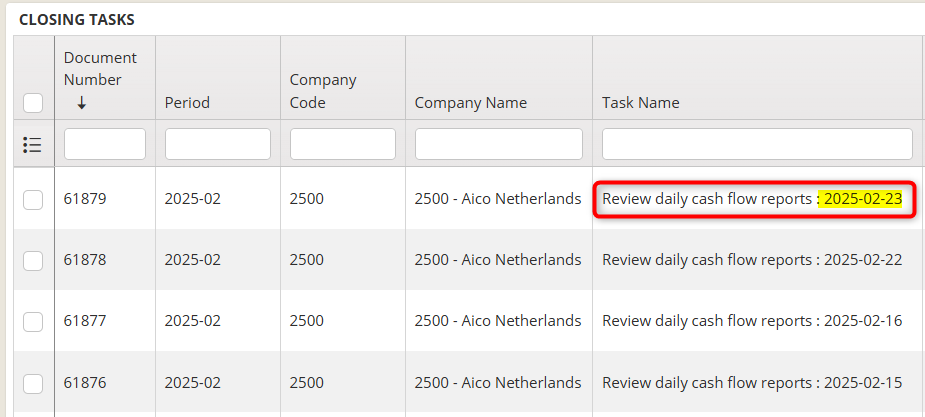
- Include date in task name will append the task date represented as YYYY-MM-DD to the end of the specified task name on each task.
- Set the workflow roles (Preparer, Approver1 etc.) It is likely that such tasks will not have more than the Preparer role however all the roles are available as normal. The key difference on the daily tasks is that you can ONLY set a due time for each role (the due day etc. is hidden)
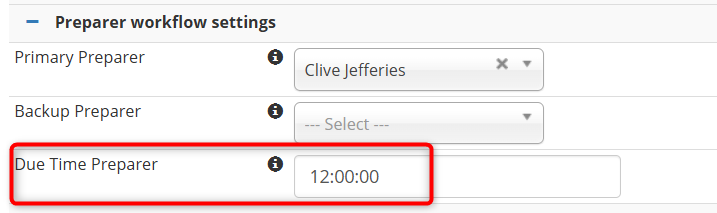
The task assumes that the day is the task day that the task relates to and it will automatically calculate the due date and time as the due time you have set on the task ON THE TASK DATE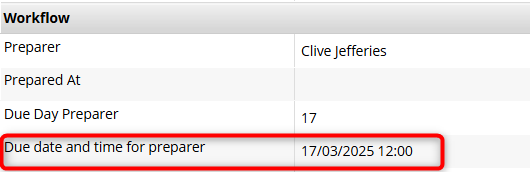
- The start time is the time of day that the task will be sent to the Preparer on each of the selected days.
- Generating the tasks. Task generation works as normally but, as mentioned about, you must generate the tasks at the beginning of the period and most likely, separately from other month end tasks. If you generate the tasks late i.e. after the first day of the period then all the tasks will be generated even though some would be now historical. Those that are historical would immediately be sent to the Preparer similar to if you generate your normal tasks after their respective start times.
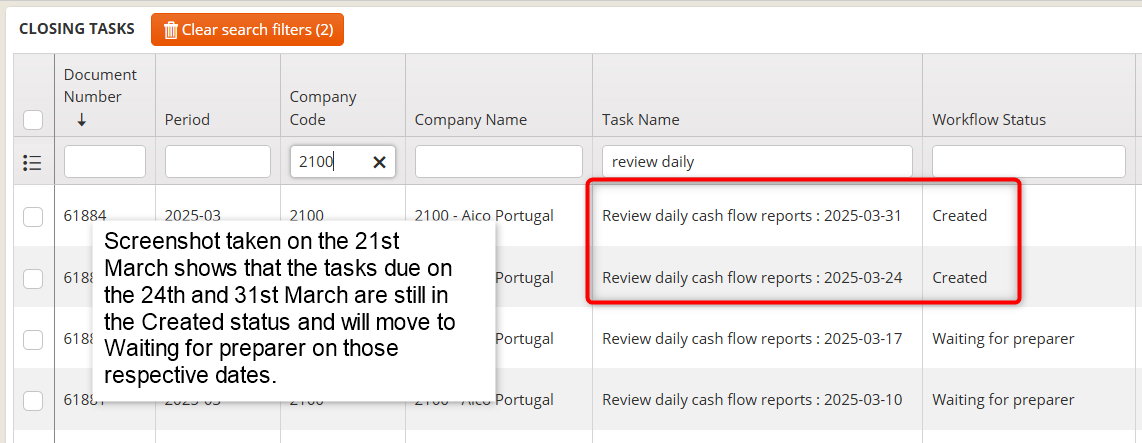
When you have generated the tasks then the entire months daily tasks are generated and set in the Created status, the tasks are then sent to the Preparer on their associated task date at the start time you have specified in the Daily schedule described above. Task Date - If you set a taskDate header on the Aico document this will automatically get populated with the real date that the daily schedule has given.
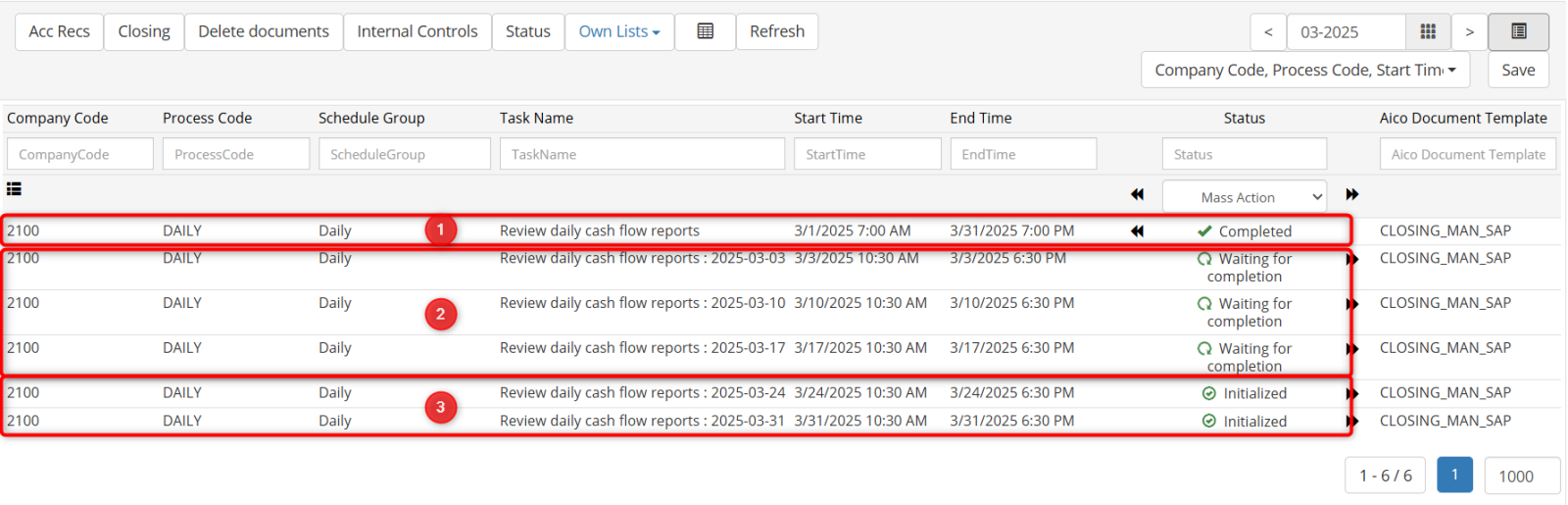
Looking at this from Automation manager. The top task (1) is the parent task from which all the daily tasks are generated. The tasks that are waiting for completion (2) are those which have already been sent to the preparer as their task dates are now in the past. The bottom 2 tasks (3) remain in the initialised status until their dates arrive and they are then sent to the preparer.
Was this article helpful?
That’s Great!
Thank you for your feedback
Sorry! We couldn't be helpful
Thank you for your feedback
Feedback sent
We appreciate your effort and will try to fix the article